
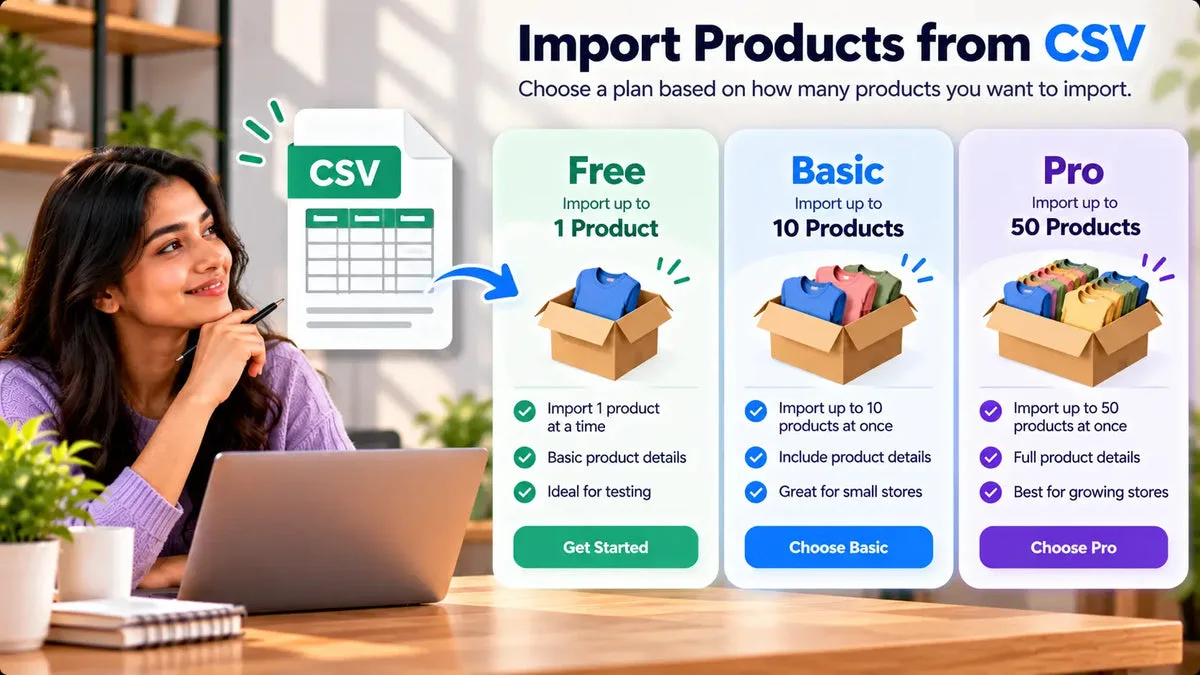
Bulk product content from a CSV is how you draft many Shopify listings without opening every product by hand. On Squadexa AI, that job starts on Basic at $9 a month, with up to 10 products in one CSV. Pro is $49 a month, raises the job to 50 products, and adds a download of a Shopify import CSV. Free is $0 and single-generation only. It does not run a CSV bulk job.
There is no Enterprise tier in the catalog statement used here, and there is no word allowance to quote. The limit that matters is products per job: 10 on Basic, 50 on Pro. A finished job lands in the app’s product library. It does not, by itself, overwrite the live descriptions. You review, edit, and then publish or export.
Plan limits
Pick the plan from the number of products you will actually generate, not from a word target. The dashboard can show words used and words remaining. This catalog does not publish a numeric cap for those words, so a monthly word figure is not part of the buying decision in this article. Products per job are.
PlanPriceCSV job
Free
$0
Single generation only. No CSV bulk job.
Basic
$9 a month
Up to 10 products per job. Regenerate-existing is on this plan card.
Pro
$49 a month
Up to 50 products per job, plus Shopify import CSV download.
Split a larger catalog into jobs of that size. A store with 40 thin listings on Basic runs four jobs of 10, with a review between them. The same store on Pro can run one job of 40, still under the 50-product ceiling, or a job of 50 if that many rows are ready. Uploading more than the plan allows is not a documented behavior. Stay inside the number.
What the CSV needs
The Squadexa page includes a starter template for the bulk upload. Use that file. This article does not invent column names. Put each product on its own row, and put the product name and the keywords you can verify into the columns the template provides. A row that contains only a cute title will come back as a thin draft. A row that includes material, size, and who it is for gives the draft something true to repeat.
Prepare the sheet before you upload. Remove products whose specs you do not have. Remove products whose handmade descriptions you want to keep. Bulk is a poor way to “touch everything.” It is a good way to draft the rows that are empty. Drag the completed file into the bulk flow. The app forwards it as a batch job.
- Starter template: the column layout on the Squadexa page, not a guessed header row.
- One product per row: name plus the keywords and specs you will stand behind.
- Within the job cap: 10 rows on Basic, 50 rows on Pro.
Progress that survives a refresh
After the upload, the app polls a job-status endpoint every few seconds and shows live progress. That progress survives a page refresh, so you can leave the screen and come back. When the job completes, the app fetches the results and bulk-inserts them into the product library. Each record can hold a meta title, a description, a meta description, key features, and keyword tags.
The library is where review starts. Search, pagination, and status badges (created, updated, not created, not updated) tell you what has reached Shopify. Open a record, edit the rich-text description, and delete tags that do not match your catalog. Save for later if the edit should stay in the app. Publish only when a person has read the claims.
A job of 50 is large enough to hide a repeated error. Check the first few records as soon as they appear. If every draft invented the same certification, stop and fix the source sheet before you publish the batch. Generating more rows will repeat the same mistake.
The import CSV on Pro
Pro adds a CSV export mapped to Shopify’s product-import schema. The catalog names handle, body HTML, variant price, SEO fields, and more. Download that file when you want Shopify’s importer to create or update products, and open it in a spreadsheet first. Price and handle are operational fields. A copy project should not change them by accident. If a cell is wrong, fix it before import.
Basic does not include that download in the plan statement used here. On Basic, the path is the in-app library and a publish action, up to the 10-product job. Publishing from the app can create a product or update an existing one. A create is followed by a variant price update. An update can send title, description, tags, SEO fields, and status, again with a variant price update. Read those fields on a sample record before you publish a stack of them.
The snapshot-and-revert path is documented on regenerate-existing, where the app stores the pre-regeneration snapshot and can write it back to the live product. This article does not promise that every CSV row has that snapshot. If you need a guaranteed way back to the old description, regenerate those products in the compare flow, or export your current descriptions before you import a file.
What Free cannot do
Free generates one product at a time from a name and primary keywords. It is a fair way to see the shape of the output: description, SEO title, meta description, feature bullets, and tags. It will not upload the CSV, and it will not download the Shopify import file. If the work in front of you is one listing, stay on Free or use Sidekick in the desktop admin for the description alone. Buy Basic when you have at least a 10-row sheet you are ready to review. Buy Pro when the sheet is closer to 50 and you want the import file.
Questions about CSV bulk
Is 50 products the free limit?
No. Fifty products per job is Pro, at $49 a month. Basic is 10 products per job. Free does not include the CSV job. None of those numbers is a word cap.
Can I download a Shopify import file?
Yes, on Pro. The file follows Shopify’s product-import columns, including handle, body HTML, variant price, and SEO fields. Read it before you import it.
Does the upload publish the products?
The completed job inserts records into the app library. Publishing to Shopify is a separate create or update, or a Pro import file that you run yourself. Review sits between those steps.
Build the CSV from the starter template, keep each job inside 10 products on Basic or 50 on Pro, and review the library before anything goes live. Install details are on Squadexa AI.