
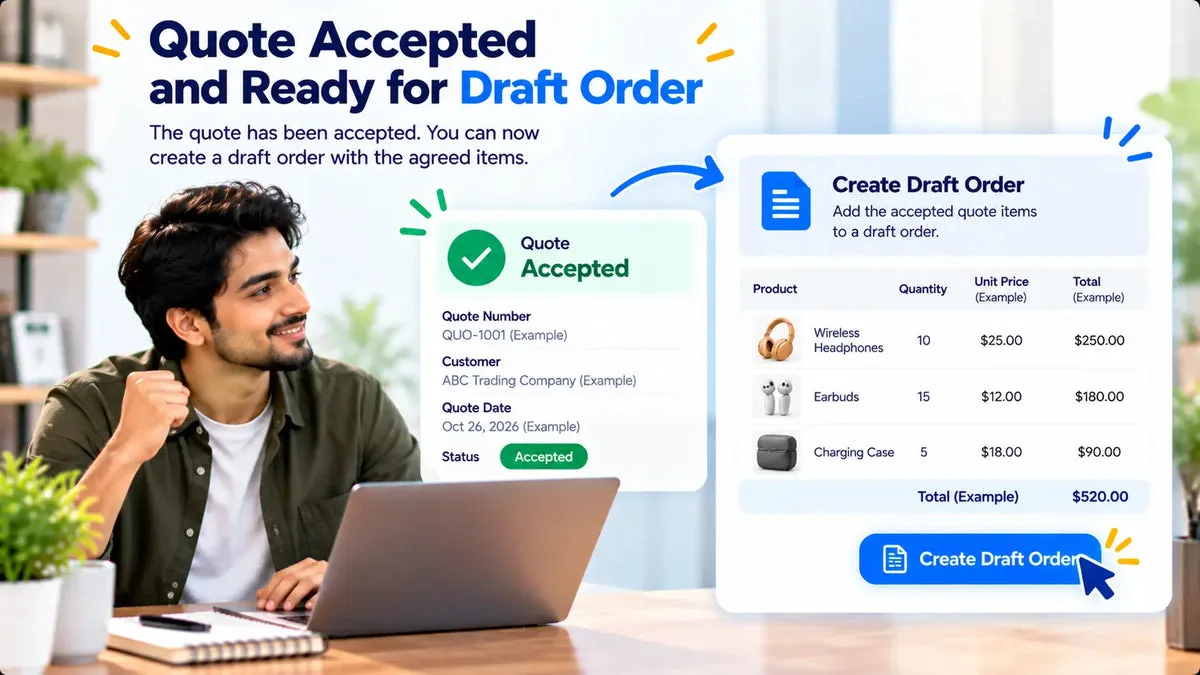
An accepted Shopify quote can become a draft order without retyping the lines. Request a Quote and Hide Price converts the quote into a Shopify draft order, with a fixed or percentage discount, shipping lines, tax lines, a deposit-and-balance schedule, and NET 7, 15, 30, 60, or 90 when you set them. The app is fully free in the catalog. Staff still open the draft and read it before they send an invoice.
The path to that button is the quote itself: the buyer requests products, you price and negotiate, the buyer accepts or you accept a counter, and you convert. A branded quote PDF can go out earlier in that path. The PDF is the offer. The draft order is the Shopify record you invoice.
Move through the quote before you convert
The storefront request is a three-step form: the quote cart, the contact and shipping details you configured, and review and send. That submission creates the quote and its line items and emails the merchant and the customer. The customer email can include the portal link, where the buyer accepts, rejects, counters, chats, or reorders.
Negotiation stays on the quote. If you accept a counter-offer, the negotiated total is stored as a discount and recalculates on the PDF, the edit page, and the portal. Convert after that step when the price changed. The draft should start from the accepted total, not from the first number you sent.
Quote status runs through Pending, Opened/Sent, Sent, Accepted, Rejected, and Ordered. Convert the quote you have accepted. You can duplicate a quote if you need a new number and a new portal token, and you can merge quotes when several requests should become one offer before conversion.
What the draft order receives
The app creates the draft through Shopify’s REST Admin API or through GraphQL, depending on whether deposits or NET payment terms are needed. It finds or creates the matching Shopify customer and carries over tags you set on the merchant side.
- Discount: a fixed amount or a percentage from the quote, including the discount written when a counter-offer is accepted.
- Shipping and tax: shipping lines and tax lines on the draft. Read both before you invoice.
- Deposit: a deposit-and-balance payment schedule when the order is not billed in one amount.
- NET terms: NET 7, 15, 30, 60, or 90 on that draft.
- Invoice email: Shopify’s draft-order invoice email can be sent to the customer from this flow.
The catalog does not say the address fields from the quote form are copied onto the draft order. Check the customer and the shipping details on the draft itself. Do not assume the form’s address block arrived unchanged.
Company assignment, a tax ID, a VAT-exempt flag, and a credit limit live on the app’s company record. They help you review the account. They are not a substitute for reading the tax lines Shopify put on the draft.
Use the PDF as the offer, and the invoice as the bill
The quote PDF carries the quote, and an accepted counter updates that PDF because the discount recalculates there. Merchant and customer emails can include your logo, brand colors, and header and footer content. Custom SMTP can send through a verified sender domain. Those emails are the correspondence. The bill the buyer pays is the draft-order invoice you send after the draft looks right.
Create the draft first. Open it in Shopify admin. Then send the invoice email. Creating the draft and emailing the invoice are sequential on purpose. A wrong tax line is cheaper to catch before the buyer receives a pay link.
Why the draft is built two different ways
The catalog says the draft order is built via REST or GraphQL depending on whether deposits or NET payment terms are needed. You do not pick that API in order to change the commercial result. You set the deposit schedule or one of NET 7, 15, 30, 60, or 90, and the app uses the path that can write those fields. A quote with neither deposits nor NET terms can still become a draft with the discount, shipping lines, and tax lines. Adding terms is what pulls in the path that supports them.
Send the invoice only after that draft is open in Shopify admin. The app can send Shopify’s draft-order invoice email to the customer. Sending it is the moment the buyer receives a way to pay. If the accepted counter changed the total this morning, confirm the discount on the draft matches the PDF you just regenerated by accepting that counter. If two quotes were merged, convert the merged quote so the invoice is not a partial request left behind in the list.
Check the draft before you send it
- The quote you converted is the accepted quote, after any counter you agreed.
- Line items, quantities, and the discount match that quote.
- Shipping and tax lines match what you promised, including any exemption you intended.
- The NET term and any deposit match the commercial terms in the quote.
- The customer email on the draft is the person who should receive the invoice.
- The shipping details on the draft are the ones you intend to fulfill, confirmed on the draft rather than assumed from the form.
Run this once with a quote to your own inbox and a draft you delete or leave unpaid. The second time, a teammate should do the check without you watching, so the habit does not depend on one person.
Questions about quote-to-draft conversion
Does tax calculate as part of conversion?
The app adds tax lines and shipping lines on the draft order. Open those lines and confirm them before you send the invoice. A VAT-exempt flag stored on the company record is a field in the app, and the draft’s tax lines are what the buyer will be billed.
Can I combine two quotes before converting?
Yes. Merge quotes combines multiple quotes into one. Convert after the merge, so the draft follows the combined offer.
Is this the same as a form that creates a draft order?
No. This conversion belongs to the quote app. A form app that creates a draft from product fields is a different product. Use the quote conversion when the source is an accepted quote.
Convert the accepted quote, then read the draft before the invoice email. The quote flow is on the Request a Quote and Hide Price page. The listing is Request a Quote and Hide Price.