
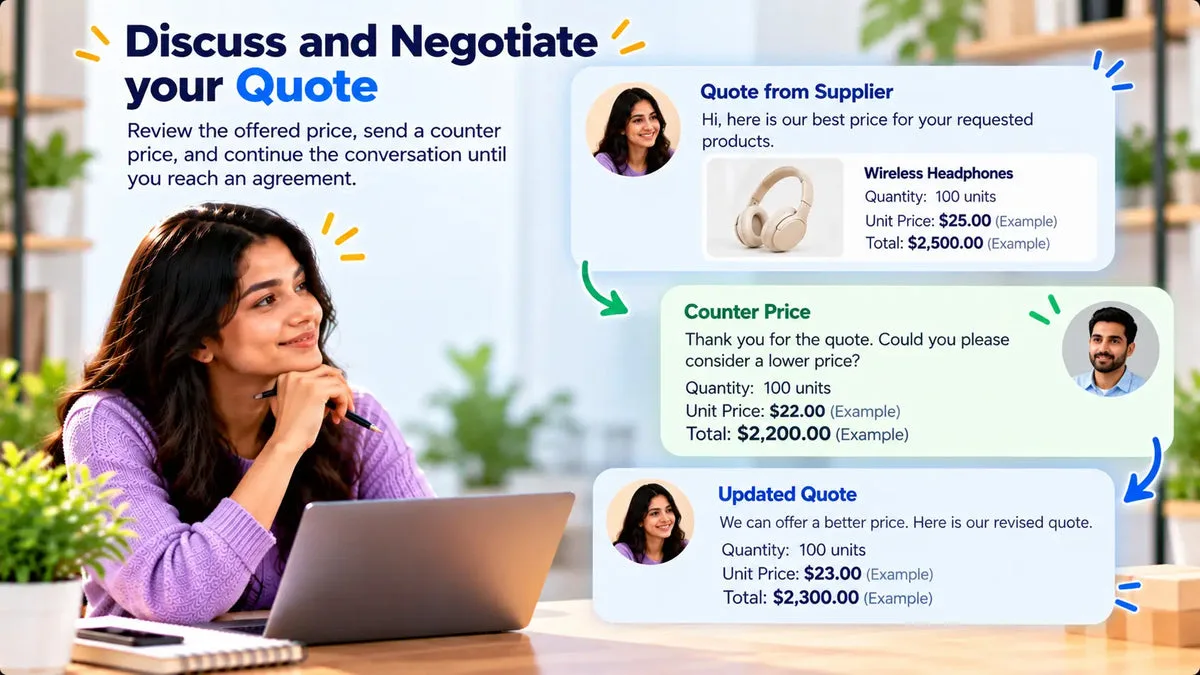
A wholesale counter-offer can stay on the Shopify quote instead of in a side email that leaves the PDF stale. In Request a Quote and Hide Price, the buyer submits a counter-offer price from the self-service portal. You accept, decline, or counter back from the admin. The app is fully free in the catalog, including negotiation.
When you accept the buyer’s counter, the app applies the negotiated total to the quote as a discount. That discount recalculates on the PDF, on the quote edit page, and in the portal. The number the buyer sees and the number you would convert to a draft order stay aligned after that acceptance.
Who can counter, and where it is stored
The buyer does this from the portal linked on the customer email. They can open that page with the quote token, without a store account, unless you have chosen a different door for starting the request. From the portal they can view status, counter, accept, reject, chat, and reorder.
You work the same quote in the admin. Accepting writes the negotiated total through as a discount. Declining leaves the prior total in place. Countering back continues the thread so the buyer responds on the portal again, rather than in a new attachment.
- Buyer counter: a counter-offer price submitted on the portal.
- Merchant accept: the negotiated total becomes a discount on the quote and refreshes the PDF, the edit page, and the portal.
- Merchant decline: you reject that counter and keep the quote on its current total.
- Merchant counter: you send a different figure back for the buyer to accept, reject, or counter again.
Chat sits on the same portal. Use it for the sentence that explains the price, such as a quantity change or a ship window. The catalog includes that chat. It does not mention read receipts, and it does not name a separate room product. Keep the price itself in the counter-offer so the PDF can pick up the accepted total.
Keep the PDF in step with the accepted price
Email threads go stale because someone replies “we can do that price” and the attached PDF still shows yesterday’s total. On this quote, the PDF updates when the counter is accepted, because acceptance applies the discount everywhere the quote is rendered, including the PDF.
Until you accept, treat the last sent PDF as the previous offer. If you need the buyer to see a new official total, accept or counter in the app, then use the quote that now carries that discount. Duplicating a quote creates a new quote number and a new portal token. Duplicate when you need a fresh quote, not when you only need to answer a counter on the current one.
After the price is accepted, conversion to a Shopify draft order can carry a fixed or percentage discount, shipping, tax, a deposit schedule, and NET 7, 15, 30, 60, or 90. Convert from the accepted quote so the draft does not revive an earlier total.
Let a rule accept, decline, or send
Quote-level automation can auto-accept, auto-decline, or auto-send a quote from thresholds you set. The catalog names three kinds of threshold: grand total, discount percent, and quantity. A rule might auto-accept a small discount and leave a larger one for a person. It might auto-decline a quote whose quantity is below a minimum you sell. It might auto-send when the total is inside a band your team has already approved.
Write the threshold as a number your margin can support. Automation acts on the rule. It does not explain itself to the buyer. If a human should see every first order from a new company, leave auto-accept off for that case and use the rule only where the total, the discount percent, or the quantity is enough to decide.
Company records, with a credit limit and tax fields, are a separate control. An automation rule on discount percent does not read a credit limit unless you have a process outside the rule. The catalog does not tie those two features together.
An example with the numbers marked as examples
Say the quote goes out at a total of 1,200. Those figures are examples, not a price from a store. The buyer counters at 1,050 from the portal and adds a chat line about a larger quantity on the next order. You can decline and leave 1,200 in place, counter at 1,120, or accept 1,050. If you accept, the app stores the negotiated total as a discount so the PDF, the edit page, and the portal recalculate to that accepted figure.
A rule could auto-accept when the discount percent stays inside a band you set, and leave 1,050 for a person if it falls outside that band. The rule looks at grand total, discount percent, or quantity. It does not read the chat line. Put the price in the counter-offer. Use chat for the reason. After acceptance, convert to a draft order if the buyer should receive an invoice, and check the draft against the accepted total rather than against the original 1,200.
Run one counter end to end
- Send a test quote to your own inbox and open the portal token in a private window.
- Submit a counter-offer price and confirm the merchant sees it on that quote.
- Accept it and confirm the PDF, the edit page, and the portal show the discounted total.
- Send a chat line and confirm it is on the quote, without expecting a read receipt.
- If you enable an automation rule, test a total just inside the threshold and a total just outside it.
Questions about quote counter-offers
Can the buyer counter without a store login?
Yes. The portal token is how they view, counter, accept, or reject. The optional login setting gates Add to Quote on the storefront. It is not required for the portal reply.
Does chat replace the counter-offer?
No. Chat is the conversation. The counter-offer is the price. Accepting the counter is what writes the negotiated total onto the quote as a discount.
Can a small discount be accepted automatically?
Yes, if you create a rule on discount percent, grand total, or quantity to auto-accept, auto-decline, or auto-send. Test both sides of the threshold before you rely on it.
Answer the next counter on the quote, then check the PDF after you accept. The flow is described on the Request a Quote and Hide Price page. Install Request a Quote and Hide Price when you want that negotiation in the app.