
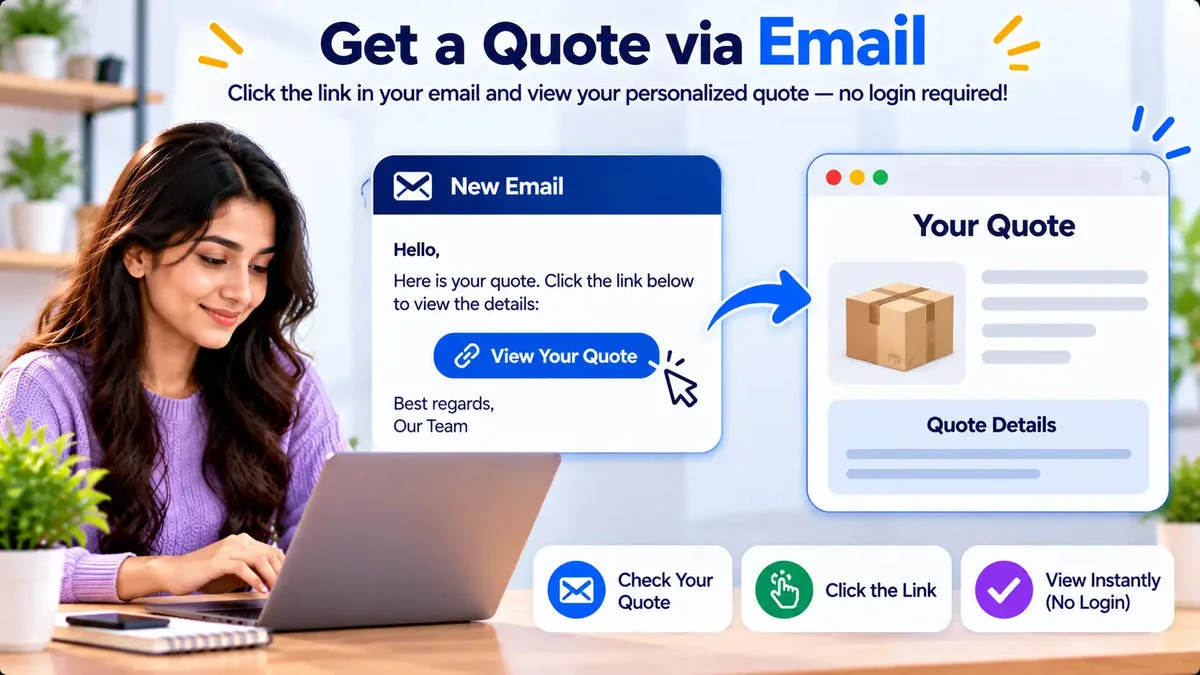
A buyer can request a Shopify quote, then accept, reject, or counter it, without creating a store account. Request a Quote and Hide Price sends a token link to a self-service portal for that quote. The catalog lists the app as fully free.
The request itself is a three-step form on the storefront: a quote cart of products, the contact and shipping fields you configured, and a review step before send. An optional setting can require a customer login before Add to Quote. That gate is optional. Leave it off when you want the request to start without an account.
Collect the request in the three-step form
The first step is the quote cart. The buyer adds the products they want priced. The second step renders the form you built: contact details, shipping details, and custom elements, including a file upload and a message field when you add them. The third step is review and send. The app checks name and email, including when the email label is translated, and can verify Google reCAPTCHA v2 or v3 if you turn that on.
You add, remove, and relabel those fields in the form builder. The catalog describes that field set as merchant-defined. It does not publish a fixed count of field types, so build the form from the fields your sales team will read. A name, an email, a company, a ship-to country, and a note cover many first requests. Add a file field only when the buyer must attach something you will open from the merchant email.
Submitting the form creates the quote and its line items, then sends the merchant email and the customer email. The customer email can include the portal link. Notifications are deduplicated per quote and recipient type, so the same email is not sent twice for that event.
Send the token link for the reply
Each quote has a portal token. The customer opens that URL to see the quote. They do not sign in to your Shopify store to do it. Duplicating a quote assigns a fresh quote number and a fresh portal token, so an old link does not point at the copy.
On that page the buyer can view the quote status, make a counter-offer, accept, reject, chat, and reorder. The merchant accepts, declines, or counters from the admin. Accepting a counter-offer writes the negotiated total back onto the quote as a discount, so the portal, the edit screen, and the PDF use the same figure.
- View: status and the quote you sent, in the portal language resolved for that buyer.
- Respond: accept, reject, or submit a counter-offer price.
- Chat: a conversation on the portal. The catalog does not mention read receipts.
- Reorder: start again from a quote they already have, still through the token page.
What the token page does not open
The token is for that quote. It is not a store login, and it does not publish a private price list or write a Shopify B2B catalog. A buyer with the link can work the quote in front of them. They cannot browse a hidden wholesale catalog of other products just because they hold the token.
If you also hide prices on the storefront, that hiding is a separate shop setting. The portal link does not replace it. A buyer who never had an account can still request a quote on products where the quote button is shown, as long as you have not required login before Add to Quote.
The portal can follow an explicit language override or the buyer’s browser language. The app supports 15 storefront languages, and you choose which subset is enabled. The token page uses that resolution. It does not create a customer account in order to pick a language.
Test the link in a private window
Create a quote to an inbox you control. Copy the portal link from the customer email. Open a private window where you are not logged into the store, and paste the link.
- Confirm the quote loads with no account form in the way.
- Submit a counter-offer and confirm it appears for the merchant in the admin.
- Accept or reject from the portal and confirm the quote status changes.
- Send a chat message and confirm it is stored on the quote.
- Turn the login-before-quote setting on only in a second test, so you can see that it blocks Add to Quote and that the token link is a different door.
Share the token only with the buyer who should see that quote. Anyone with the URL can open that portal. If a quote is duplicated, use the new token and retire the old link in your own process.
What your team still has on file
A request without an account is still a quote in the admin. It has line items, the email the buyer typed, a status, and the portal token. You can filter the list and export a CSV that includes quote number, customer name, email, phone, status, totals, discount, shipping, tax, and due or expiry dates. The buyer’s lack of a store login does not leave you with only an inbox.
If you convert that quote later, the app finds or creates the matching Shopify customer as part of building the draft order. That customer record is a result of conversion. It is not a registration form in front of the original request. Reorder on the portal starts another pass from a quote the buyer already holds, still through the token. Assign the company, the tax ID, and the credit limit in the admin when you want those fields on the account. The token does not file the buyer into a company by itself.
Questions about quotes without an account
Does the buyer need to register before requesting a price?
No, unless you enable the optional login gate on Add to Quote. With that gate off, the three-step form creates the quote without a store account.
Can they chat on the token page?
Yes. The portal includes chat, plus counter-offer, accept, reject, and reorder. The catalog does not document read receipts on that chat.
Does the token unlock every wholesale price?
No. The token opens that quote’s portal. Storefront price hiding and Shopify catalogs are separate settings, and this app does not write Shopify B2B catalogs.
Send one token to yourself from a private window before you ask a buyer to skip account creation. The steps are on the Request a Quote and Hide Price page, and the app is Request a Quote and Hide Price on the Shopify App Store.