
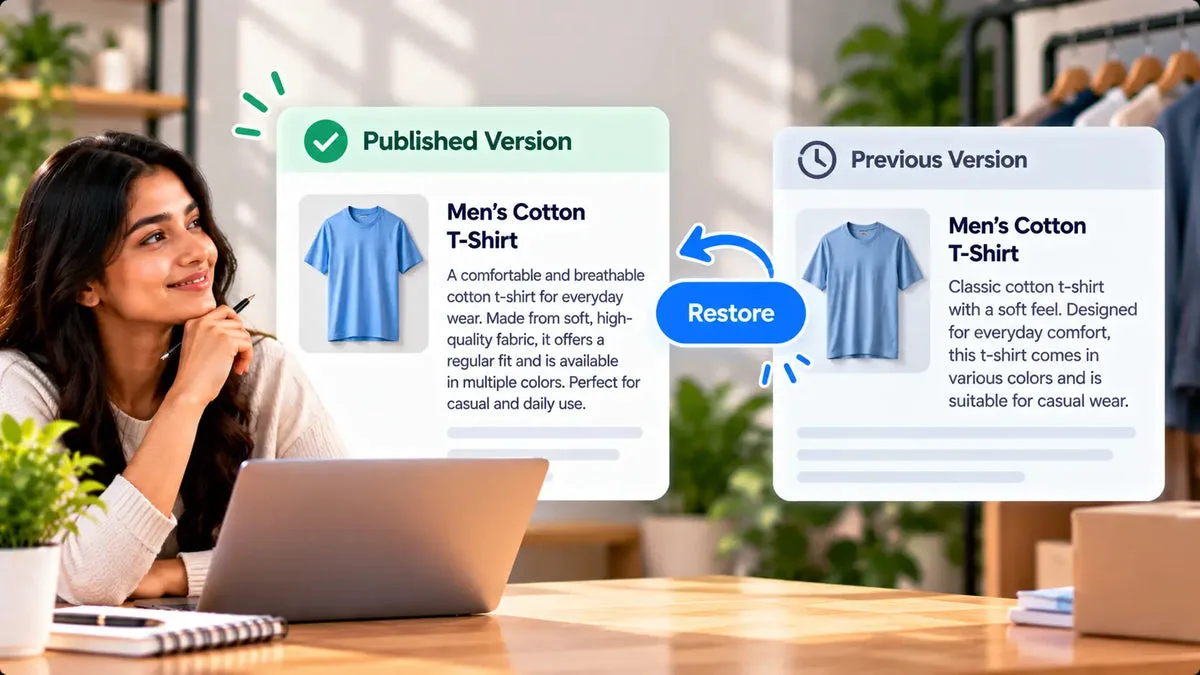
If a published AI description is wrong, revert restores the pre-regeneration snapshot onto the live Shopify product. Squadexa AI takes that snapshot when you regenerate an existing product, keeps it beside the new draft, and can write it back. This works when the app stored the snapshot for that product. It is not a general undo for every edit ever made in Shopify.
The Squadexa page does not state how long the snapshot is kept. Use revert soon after you notice the bad text, and do not treat it as a permanent archive. Shopify’s own admin is not documented here as an unlimited history of product descriptions. If the app has no snapshot, the old paragraph is not reconstructed from memory.
When you need revert
You need it after a publish, when the live description, the SEO title, or another field no longer matches the product and you want the stored original back. Typical cases are a draft that invented a material, a meta description that added a claim you do not make, or a tag set that replaced the tags your collections use. The moment you see the storefront showing that text, stop publishing more products and open the record you just updated.
Revert is part of the regenerate-existing flow. The Squadexa page lists that flow on Basic, at $9 a month, along with CSV bulk of up to 10 products per job. Pro is $49 a month and raises CSV bulk to 50 products, plus a Shopify import CSV. Free is $0 and single-generation only. Confirm on the plan screen that regenerate and revert are available before you depend on them. A single generation that creates a new library record is a different path from snapshotting a product that is already live.
- Use revert: the app regenerated this product and still holds the pre-regeneration snapshot.
- Pause the batch: one bad publish is a reason to stop the next publishes.
- Read the storefront: confirm the restored text is the paragraph you remember, not a second draft.
What a snapshot is
When you pick a live product in the resource picker, the app snapshots that product’s current SEO fields through Shopify, generates a replacement, and stores the original and the new version for comparison. Revert sends the pre-regeneration snapshot back onto the live product. The catalog’s wording for the capture is the current SEO fields. The comparison also keeps the original copy beside the AI version so you can see the description you had. This article does not add fields the catalog does not name, such as images or inventory, to that restore.
The follow-up people ask is whether the SEO title comes back as well. The snapshot is described as those SEO fields, and revert restores that snapshot onto the product. Read the product in admin after you revert and check the description, the SEO title, and the meta description yourself. If a field did not return to the sentence you expected, the snapshot did not hold the wording you hoped, and you will need another source for that sentence.
There is no published retention window. “At any time” on a marketing line is not a number of days. Plan as if you should revert while you still have the record in front of you. Export or copy a description you cannot afford to lose before you regenerate it, so you are not relying on an unstated retention period.
Prevent the bad publish
The comparison view is how you avoid needing revert. Read the original and the draft, then push one field: title, description, meta title, meta description, or tags. Leave the handmade description in place when it holds a size, a material, or a warning. A fuller update can also change status and can follow with a variant price update. If the only problem was a slogan, the single-field push is the smaller move.
Save for later keeps the edited draft in the library and does not write to Shopify. The library badges — created, updated, not created, not updated — show whether a record has already been sent. Stay on “not updated” until the read is done. Revert is the recovery after “updated” was the wrong choice.
- Compare before any field is pushed.
- Push the meta description alone when the body is already correct.
- Edit out measurements and certifications you did not supply.
- Check price and status before a full product update.
What to do if no snapshot exists
If you never regenerated that product inside the app, there is no pre-regeneration snapshot to restore. Revert cannot invent the older paragraph. Look for a copy you already have: a spreadsheet export, a supplier sheet, or the text in an email. CSV bulk inserts generated records into the library. The catalog does not say every bulk row stored a snapshot of the previous live description. Do not assume a 50-product CSV job can be reverted as a set.
A Pro import CSV is another path that can change products through Shopify’s importer. That file includes handle, body HTML, variant price, and SEO fields. If you import it, the way back is a file you saved beforehand, not an unstated bulk undo. Download or export the current descriptions before the import when those sentences matter.
Test revert on one product
Before you regenerate a collection, run one product you can inspect. Pick it in the resource picker, wait for the original and the draft, and read both. Push only the description, or only the meta description. Open the product in admin and on the storefront. Then use revert and refresh the admin. The restored text should match the snapshot you saw on the original side of the comparison.
If that round trip works, you know the control is present on your plan and that you can find it. If it does not, stop and use single-field updates only, with your own backup of the current description. A catalog refresh is safer after that one-product test than before it. Basic’s CSV cap of 10 and Pro’s cap of 50 are generation limits. They are not a promise that revert covers every row in the file.
Questions about reverting a description
Does revert restore the SEO title too?
Revert restores the pre-regeneration snapshot, which the catalog describes as the SEO fields captured when regeneration started. After you revert, check the SEO title and the meta description on the product. Confirm the words, rather than assuming every box on the page rolled back.
Is there a time limit?
The page does not state one. The practical rule is to revert while the snapshot is still available, and to keep your own copy of any description you cannot lose.
Can I revert a whole CSV job at once?
The catalog documents revert for the pre-regeneration snapshot on a product you regenerated. It does not document a bulk undo for every CSV row. Treat each published product on its own, and only where a snapshot exists.
Restore the live product from the pre-regeneration snapshot when the app saved one, and keep your own copy when it did not. The control is part of the regenerate flow on Squadexa AI.