
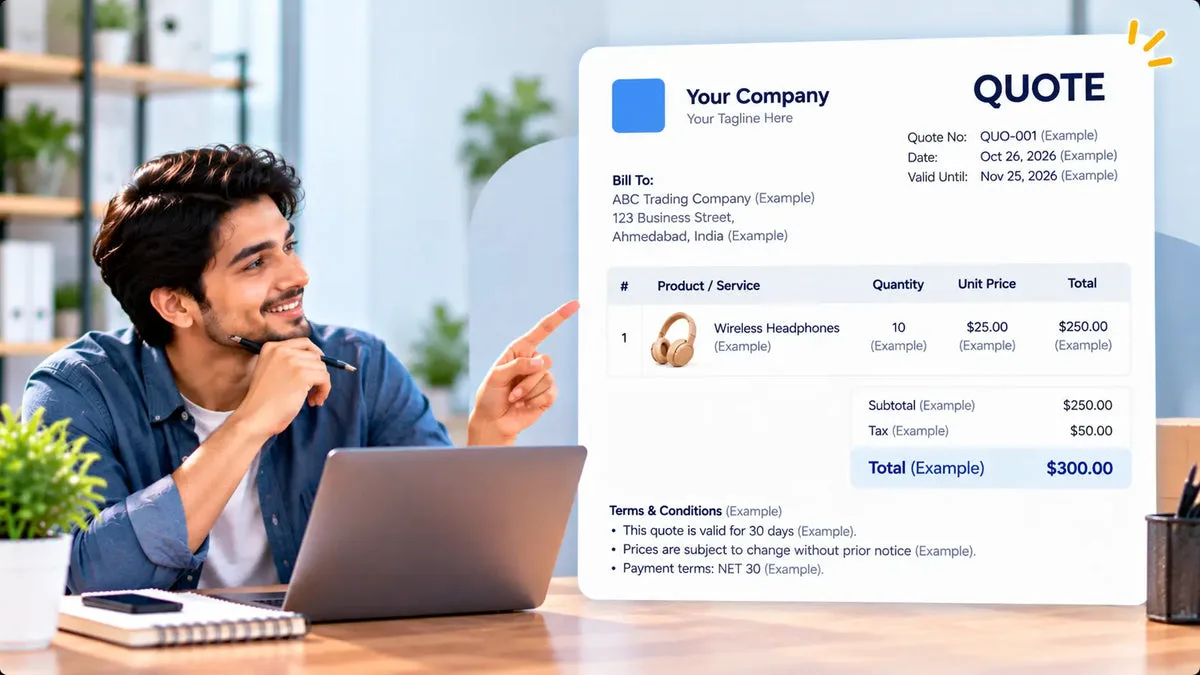
You can send a Shopify quote as a PDF from the quote, instead of rebuilding it in a document each time the price changes. Request a Quote and Hide Price includes a quote PDF. Merchant and customer emails are template-driven, with your logo, brand colors, header and footer content, and a choice of which contact, shipping, and product columns appear. The app is fully free in the catalog.
The catalog is specific about branding on the email. It does not specify logo, color, or font controls on the PDF itself. Treat the PDF as the quote document the app generates, and treat the email as the branded message around it. Check both on a quote you send to yourself before a buyer receives them.
What you can set on the email
Both the merchant notification and the customer email are real messages, not a placeholder. You can change header and footer content, brand colors, and the logo. You can toggle which contact fields, shipping fields, and product columns show in the email. Customer-uploaded files are attached to the merchant email and linked in both emails.
- Logo and colors: set on the merchant and customer emails.
- Header and footer: your own content, which is the practical place for a short note, an address, or the terms sentence you want in the message.
- Columns: choose which contact, shipping, and product details appear.
- Portal link: the customer email can include the self-service link for status, counter-offer, accept, reject, chat, and reorder.
Notifications are deduplicated per quote and recipient type, so the same email is not sent twice for that send. If a buyer must see a new version, use the quote actions that create a new send, and confirm you are not looking at the first copy still open in an inbox.
The catalog does not name a test-send button for these templates. The reliable check is a quote addressed to an inbox you open: read the logo, the colors, the columns, and the portal link in a real message.
Send from your own domain when you need to
Custom SMTP is supported as an alternative to the app’s default mailer. It uses a custom sender domain with domain verification. Set that up when the buyer should see your domain on the message. Finish verification before you depend on it for a live quote, and send the test quote only after the domain shows as verified.
If you stay on the default mailer, still read the from-name and the reply path on the test message so the buyer’s reply lands where sales expects it. The catalog documents the default mailer and custom SMTP. It does not document a separate inbox product inside the app.
Refresh the PDF after the price changes
Accepting a counter-offer applies the negotiated total to the quote as a discount. That discount recalculates on the PDF, on the edit page, and in the portal. The PDF the buyer should rely on is the one from after that acceptance. A PDF attached earlier in the thread can still show the previous total. Send the current quote after the acceptance, and do not ask the buyer to ignore an older file.
The catalog does not say the portal page itself includes a PDF download. The customer email can carry the portal link. If your process depends on the buyer downloading a file from that page, confirm that control in the admin on a test quote before you promise it. This article does not assume the download is there.
Legal terms that must be on the offer belong in a place you control. Header and footer content on the email is configurable. The catalog does not document a font picker or a logo placement control on the PDF, so do not describe the PDF as a fully designed template. If a clause has to be in the file your lawyer approved, compare the generated PDF with that clause on the test quote and add the wording where the product actually lets you store it.
Decide what the buyer must see in the message
Turn on the contact, shipping, and product columns the buyer needs to recognize the quote, and turn off columns that repeat empty fields. A header can carry your company name and address. A footer can carry the sentence about how long the offer lasts, if you want that sentence in the email. The catalog makes that header and footer content configurable. It does not give the PDF its own font list. After you save the columns, the test message is the proof. A logo that looks right in the admin and broken in the inbox is still a failed check.
Review one PDF and one email before a buyer does
- Create a quote with one line, a discount, and your logo and colors saved on the email.
- Send it to yourself and confirm the logo, colors, columns, and footer on the customer email.
- Open the PDF and confirm the line and the total match the quote edit page.
- Accept a test counter-offer and open the PDF again so you see the discounted total.
- If you use custom SMTP, confirm the verified domain on that same message.
The invoice the buyer pays is a later step. Conversion creates a Shopify draft order, and Shopify’s draft-order invoice email can be sent after you check tax, shipping, and terms. The quote PDF is not that invoice. Keep the filenames and the amounts distinct so a buyer does not pay from an old quotation.
Questions about Shopify quote PDFs
Can I put my logo on the PDF?
The catalog documents the logo and brand colors on the merchant and customer emails. It does not specify logo, color, or font settings on the PDF. Set the email brand, generate a PDF from a test quote, and see what that file actually contains.
Can I send the quote from my own domain?
Yes. Custom SMTP with a verified sender domain is the documented alternative to the app’s default mailer.
Does the PDF update after a counter-offer?
When you accept the counter-offer, the negotiated total is applied as a discount and recalculates on the PDF, the edit page, and the portal. Review the file after acceptance before you treat it as the current offer.
Brand the email, generate the PDF from the accepted total, and read both before a buyer does. Details are on the Request a Quote and Hide Price page. The listing is Request a Quote and Hide Price.