
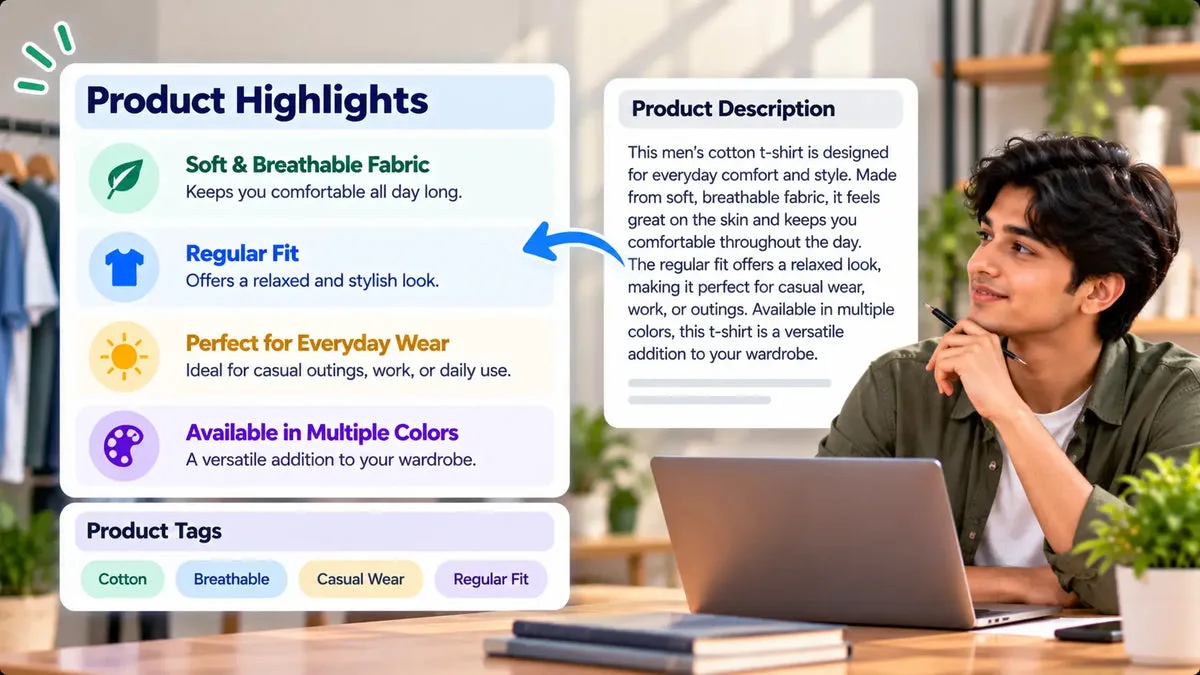
Feature bullets turn a wall of product text into a list a shopper can scan, and tags group that product with the rest of your catalog. Squadexa AI includes key feature bullets in the generated description, and it returns keyword tags on the same generation. You edit both before they go live. Bullets are for the product page. Tags are for how you organize products in Shopify. They are not a ranking trick, and this article does not treat them as one.
Every generation, including Free at $0, can produce the description with those bullets, plus a meta title, a meta description, and tags, from a product name and primary keywords. Basic at $9 a month adds CSV bulk of up to 10 products per job. Pro at $49 a month raises that to 50 and adds a Shopify import CSV. The catalog does not publish a word cap, and it does not include an Enterprise plan. The editing step is the same on every plan: read the bullets and delete the tags that do not match your catalog.
Bullets the generation creates
The Squadexa page says scannable feature lists are built into the description. The catalog’s generation result includes key features together with the description body. In practice you are looking at a description you can edit as rich text, with the features expressed as a list inside that description. The list should name real attributes: material, size, contents, compatibility, and care. A bullet that only restates the slogan does not help a shopper compare two products.
Give the generator the features as keywords so the bullets have a source. “Stoneware, 12-ounce, dishwasher safe, speckled glaze” can become four bullets. “Nice mug” cannot. After the draft appears, open the rich-text description and rewrite any bullet that added a feature you did not supply. The editor is the place to fix order, too. Put the fact that prevents a return, such as capacity or care, above a mood line.
- Material and size: the comparison facts, written as separate bullets.
- Compatibility or contents: what is included, or what the product works with.
- Care: one bullet for wash, charge, storage, or assembly.
- One use: a single situation, after the facts, if you still need it.
Tags versus a keyword list
The generation also returns keyword tags. In Shopify, tags are labels on the product. Merchants use them for collections, filters, and internal search in the admin. A tag is useful when it matches a label you already use, such as “stoneware” or “dishwasher-safe,” spelled the way your other products spell it. A tag is noise when it is a sentence, a claim, or a synonym you do not use anywhere else.
Keywords you typed to steer the writing are not automatically a tag strategy. The app may suggest tags from those words. Your catalog may already rely on a shorter set. Publishing every suggestion can create one-off tags that never match a collection rule. The edit view shows tags as chips so you can remove them before a publish. Remove first. Add a missing catalog tag yourself if the draft omitted one you require, such as a season or a product line you actually file that way.
If a collection is built on the tag “linen,” a new tag called “flax fabric” will not place the product in that collection. Align the chip with the tag the collection expects.
What to delete
Delete a tag that names a material, a certification, or a buyer you cannot support. Delete duplicates that differ only by a hyphen, a capital letter, or a plural. Delete tags that belong to a different product line and landed in the draft because the keywords were broad. A bulk job makes this worse: the same extra tag can appear on every row. Clear it on the first record, then look for it on the next ones before you publish tags as a batch.
- Delete claims you would not print on the package.
- Delete spellings that do not match the tags already on the catalog.
- Delete tags that would pull the product into the wrong collection.
- Keep the short set a teammate can explain without opening the generator.
Publish one field
Bullets live in the description. Tags are their own field. You do not have to publish them together. From the regeneration comparison, a single-field push can send the description, or the tags, or the title, the meta title, or the meta description. Push the description when the bullets are right and the tags still need a cleanup. Push tags only after the chips match your catalog. Leave the other field for a second pass.
A fuller product update sends title, description, tags, SEO fields, and status, and it can update the variant price. That is the wrong button when you only wanted a cleaner list. Save for later keeps the edited description and the tag chips in the app without writing to Shopify. The library badges show whether the product is created, updated, not created, or not updated. Stay on not updated until the bullets and the tags have both been read, even if you then publish only one of them.
Regenerate-existing, the path that snapshots a live product and compares the original with the draft, is on the Basic plan card. Free still returns bullets and tags on a new record. Revert restores the pre-regeneration snapshot if a publish was wrong. The page does not state how long that snapshot is kept.
A before and after on a real editing pass
Take one product with a dense paragraph. Keep four bullets a shopper can check against the product, and two or three tags your collections already use. Publish the description field first, then the tags, and confirm the product still appears in the collection that depends on the tag you kept.
Check a handful of products before a CSV job. Basic’s job is 10 products and Pro’s is 50. If the first records share a bad tag, fix the source keywords before the next upload. Follow the starter template on the Squadexa page, and put only tags you are willing to publish.
Questions about bullets and tags
Do tags change SEO?
This article does not claim that they do. Tags organize products for collections, filters, and admin search. The SEO title and the meta description are the snippet fields, and they are separate outputs you also need to read.
Can I edit the bullets?
Yes. The description is a rich-text field. Change the list, the order, and the wording before you publish. The generator’s first list is a draft.
Should every keyword become a tag?
No. Keywords steer the draft. Tags should match the labels your catalog already uses. Delete the rest.
Turn the paragraph into a short list of true features, and keep only the tags that match how you already organize products. The generation that produces both is on Squadexa AI.